For many US IPTV users, IPTV Smarters Pro is the first player they encounter — it is the most accessible option on Amazon Fire TV since it installs directly from the Amazon App Store, no developer settings required. But Smarters Pro also works on Android phones and tablets, iOS devices, Smart TVs, and more, making it the widest-reach IPTV player currently available.
This guide covers everything from first installation through playlist configuration, EPG setup, and Xtream Codes connection — with specific instructions for each major platform. For a comparison of Smarters Pro against TiviMate and other IPTV players, see our complete IPTV player comparison.
IPTV Smarters Pro Overview — What You Get for Free
IPTV Smarters Pro is entirely free to download and use. Unlike TiviMate, which has a paid Premium tier for advanced features, Smarters Pro provides full functionality including M3U playlist support, Xtream Codes API connection, EPG integration, VOD browsing, and multi-profile management without any additional cost.
The trade-off is that Smarters Pro's EPG interface is less polished than TiviMate's — the grid presentation is functional but not as clean or as fast-rendering on devices with limited RAM. For users on Fire TV who want a capable free IPTV player without sideloading, Smarters Pro delivers genuine value.
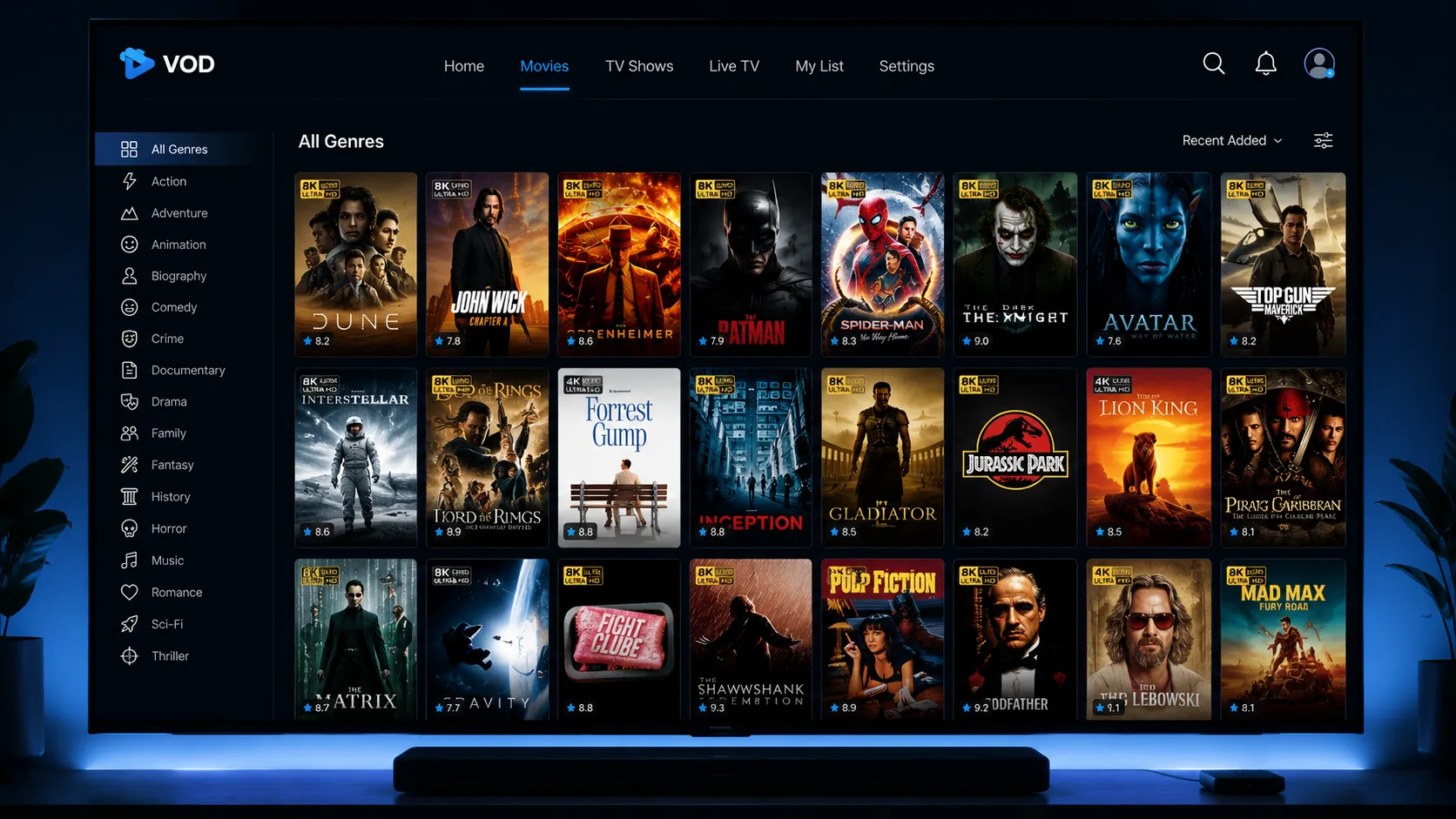
Installing IPTV Smarters Pro — Platform by Platform
Amazon Fire TV Stick: Open the Fire TV home screen, search for "IPTV Smarters Pro" in the Amazon App Store, and install directly. No sideloading required. This is the main advantage Smarters Pro has over TiviMate on Fire TV.
Android TV and Android boxes: Open the Google Play Store, search for "IPTV Smarters Pro," and install. Available directly without any sideloading or special settings.
iPhone and iPad (iOS): Open the Apple App Store, search for "IPTV Smarters Pro," and install. The iOS version supports M3U playlists and Xtream Codes connections with EPG integration.
Android smartphones and tablets: Available from Google Play Store. The phone interface differs slightly from the TV interface but supports all the same connection methods and features.
Setting Up IPTV Smarters Pro with an M3U Playlist URL
After opening Smarters Pro for the first time, you are prompted to log in or set up a service. Choose the option to add a service manually. The app presents several connection methods — select Load Your Playlist or File/URL.
- Enter a name for this playlist (e.g., your provider's name) in the Playlist Name field.
- Paste your M3U playlist URL from your IPTV provider into the Playlist URL field.
- If your provider also supplies an EPG URL, enter it in the EPG URL field on the same screen.
- Tap Add User or confirm. Smarters Pro will fetch and import the playlist.
- Once loaded, your channels appear organized by the group-title tags in your M3U file.
If your M3U URL contains authentication tokens (long strings of characters after the base URL), make sure to copy the complete URL including all parameters. Truncating an authenticated URL causes the playlist to load with an authorization error.
Setting Up IPTV Smarters Pro with Xtream Codes
If your provider supports Xtream Codes API — and many do — this connection method often delivers a smoother experience, especially for VOD content. During the initial setup, select Login with Xtream Codes API.
- Enter the Server URL your provider gave you — typically formatted as http://server-address:port
- Enter your Username and Password as provided by your IPTV service.
- Tap Add User to connect. Smarters Pro queries the server and loads your channel list, EPG, and VOD library automatically.
Xtream Codes connections generally load EPG data more smoothly than M3U connections because the scheduling data is served directly from the provider's API rather than requiring a separate EPG URL configuration.
Configuring IPTV Smarters Pro for the Best Experience
- Player selection: In video settings, you can switch between Smarters Pro's internal player and ExoPlayer. ExoPlayer generally handles a wider range of stream formats and handles buffering recovery better on most devices
- Parental controls: Available in the Settings menu — useful for households with multiple users accessing the same device
- Multiple profiles: Smarters Pro supports multiple service profiles, so you can add more than one IPTV subscription and switch between them
- EPG refresh: The EPG updates automatically, but you can manually trigger a refresh through the Settings menu if your guide data appears stale
Common IPTV Smarters Pro Issues and Fixes
Playlist loads but channels won't play. This is usually a credential or connection issue rather than a Smarters Pro problem. Verify your M3U URL is current and hasn't expired — IPTV provider URLs sometimes include expiration timestamps. Try the URL in a browser to confirm it still resolves correctly.
EPG not showing or showing wrong data. If using M3U, verify the EPG URL is entered correctly in the playlist settings. If using Xtream Codes, the EPG data is served automatically and issues usually reflect a provider-side EPG problem rather than a Smarters configuration error. Our M3U playlist guide covers EPG troubleshooting in depth.
App crashes on older Fire TV devices. Smarters Pro can be memory-intensive on older Fire TV Sticks with limited RAM. Close background apps, clear the Smarters Pro cache in Fire TV Settings, and if the issue persists, consider switching to a lighter player or upgrading your device. Our device guide covers device recommendations for different use cases.
Need Help with Smarters Pro Setup?
If you're stuck on configuration, can't get your playlist loading, or want to find a compatible IPTV provider — reach out on WhatsApp and we'll help you get sorted.
Frequently Asked Questions — IPTV Smarters Pro
Yes, IPTV Smarters Pro is completely free to download and use. There is no paid premium version — all features including M3U playlist support, Xtream Codes connection, EPG integration, VOD browsing, and multi-profile support are available at no cost. Your only expense is the IPTV subscription from your chosen provider.
Yes — IPTV Smarters Pro is available directly from the Amazon App Store. Search for it by name in the Fire TV app store and install it like any other Amazon app. No sideloading, no enabling unknown sources, and no Developer Options required. This is the primary advantage Smarters Pro has over TiviMate for Fire TV users who prefer a simpler installation process.
M3U connection loads your channel list from a playlist URL. Xtream Codes connects to your provider's server via username, password, and server URL, with the server generating the channel list, EPG, and VOD library dynamically. Xtream Codes typically provides smoother VOD integration and more automatic EPG loading. Both methods deliver the same live channels. If your provider supports both, Xtream Codes is worth trying for its more integrated experience.